Procreate Mushroom Brush Collection: A Guide to Better Digital Art
If you are looking to add whimsical, organic textures to your digital illustrations without spending hours painting every single spore or gill, the Procreate Mushroom Brush Collection is a tool designed specifically for that purpose. For designers, tattoo artists, and illustrators working within the Procreate ecosystem, these brushes offer a shortcut to complex details. However, simply downloading a brush set does not guarantee a professional result. Many creators overlook critical compatibility issues or misunderstand how stamp brushes function compared to traditional drawing tools, leading to frustration rather than efficiency.
Understanding the Tool Before You Buy
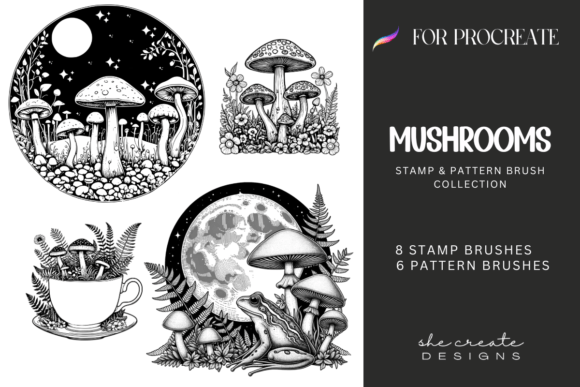
The core value of the Procreate Mushroom Brush Collection lies in its ability to replicate intricate natural forms instantly. Instead of manually sketching a forest floor filled with various fungi, these stamps allow you to place pre-rendered elements with precision. This is particularly useful for concept artists building environments quickly or tattoo artists designing flash sheets where repetition and consistency are key.
However, a common mistake is assuming these brushes work like standard calligraphy or watercolor brushes. They are stamp brushes. This distinction is vital. When you drag your stylus across the screen, the brush repeats the same image at intervals rather than creating a continuous stroke. If you expect fluid, hand-drawn lines from a stamp brush, your workflow will feel clunky and unnatural. Understanding this mechanism before purchasing ensures you are buying the right tool for your specific artistic needs.
Avoiding Compatibility Pitfalls
One of the most significant errors creators make when purchasing digital assets is ignoring device and software requirements. The Procreate Mushroom Brush Collection, along with our newest addition, the Procreate Stamp Brush Collection, is designed exclusively for the Procreate app on iPad devices. It is not a universal asset.
You might be tempted to buy these brushes if you own a high-end laptop or a different tablet, but here is the reality: these files will not open in Photoshop, Clip Studio Paint, or any other application. Attempting to import a .brushset file into non-Procreate software will result in nothing happening. This misunderstanding can lead to wasted money and lost time troubleshooting a problem that has no solution outside of the intended ecosystem.
- Check your hardware: Ensure you have an iPad capable of running the latest version of Procreate.
- Verify your software: Confirm you have the Procreate app installed and updated.
- Ignore cross-platform claims: If a tutorial suggests using these brushes in Photoshop, it is incorrect information.
By verifying these requirements upfront, you protect yourself from the disappointment of an unusable purchase. These tools are meticulously crafted for the Apple Pencil's pressure sensitivity and Procreate's specific rendering engine. Moving them elsewhere strips away their functionality entirely.
Common Usage Mistakes and How to Fix Them
Even with the correct device, users often struggle to get professional-quality results because they treat stamp brushes exactly like physical rubber stamps. In digital art, relying solely on the default settings can create a repetitive, "sticker-like" appearance that ruins the illusion of depth and realism.
To avoid this, you must manipulate the brush settings within Procreate. Here are practical adjustments to elevate your work:
Adjust Spacing and Rotation
If your mushroom illustrations look like a row of identical clones, your spacing is too tight and your rotation is locked. Go into the brush settings and adjust the "Spacing" slider to create more organic gaps between stamps. More importantly, enable "Rotation" so that each stamp varies slightly in angle. Nature is rarely perfectly aligned; mimicking this randomness is what separates amateur work from professional illustration.
Vary Opacity and Size
A flat, uniform size makes a scene look artificial. Use the size dial on your Apple Pencil or the brush settings to vary the scale of your mushrooms. Combine this with opacity changes to create foreground and background elements. A mushroom further back in the composition should be smaller and less opaque to simulate atmospheric perspective.
Layering Techniques
Don't just stamp everything onto a single layer. Place your base shapes on one layer and use separate layers for shadows, highlights, and texture overlays. This approach gives you the flexibility to move elements around later without ruining the underlying composition. It also allows you to blend modes to integrate the stamps seamlessly with your hand-painted backgrounds.
Evaluating Value and Workflow Efficiency
When considering the purchase of the Procreate Mushroom Brush Collection or the new Stamp Brush Collection, ask yourself if it genuinely saves you time or if it creates a dependency that hinders your growth. High-quality brush sets are investments in your workflow. They should handle the tedious parts of creation—like repetitive texturing—so you can focus on composition, color theory, and storytelling.
If you find yourself struggling to customize the brushes or spending more time tweaking settings than actually creating, the issue may not be the brushes themselves, but your familiarity with the Procreate interface. Take the time to learn the brush studio features. The best artists don't just use presets; they understand how to modify them to fit their unique style.
What to Expect Upon Purchase
Transparency is essential when buying digital goods. When you purchase these collections, you will receive a single Zip file containing the .brushset file. There are no hidden subscriptions or recurring fees. Once downloaded, the process is straightforward: import the file into Procreate via the gallery menu, and the brushes will appear in your library ready to use.
Remember, the goal of these tools is to help your creations flourish. Whether you are a hobbyist creating fantasy landscapes or a small business owner designing patterns for craft products, the right tools can bridge the gap between imagination and execution. By avoiding compatibility errors and mastering the customization of stamp brushes, you ensure that your creative process remains smooth, efficient, and enjoyable.
Stay connected with the latest releases and tips by following She Create Designs. Your support helps us continue crafting resources that empower creators to do their best work. Start exploring the possibilities today, but always keep your workflow and device compatibility in mind to get the most out of your investment.